| Title | Samsung Smart Switch Mobile |
| Version | 3.7.38.2 |
| Price | Free |
| Category | Common |
| Package | com.sec.android.easyMover |
Moving to a new smartphone is an exciting experience, but the thought of transferring all your important data—contacts, photos, messages, apps, and settings—can quickly turn that excitement into anxiety. Samsung Smart Switch Mobile is a powerful, official tool from Samsung Electronics that takes the stress out of migrating your digital life. Whether you are upgrading from an older Samsung device, switching from another Android phone, or coming over from an iPhone, this app provides a seamless, secure, and fast transfer experience. It supports both wired and wireless connections, as well as PC-based transfers, so you can choose the method that works best for you. More than just a mover, Smart Switch also enables you to back up your current device to a computer or external storage and restore it later. With a clean interface and step-by-step guidance, the app ensures that no photo, contact, or app is left behind. In this article, we will walk you through the app’s key features, explain why it is the recommended choice for Samsung users, share practical tips to get the most out of it, and show you how to use it like a pro. By the end, you will be ready to migrate your data in minutes—with zero hassle.
Key Features
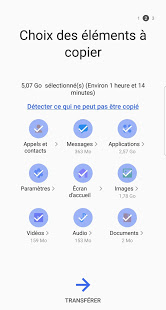
- Comprehensive Data Transfer – Samsung Smart Switch Mobile supports an extensive range of data types, including contacts, call logs, text messages, photos, videos, music, documents, calendar events, alarms, wallpapers, device settings, and even most of your installed apps (where available). This means you can replicate your entire phone experience on your new Samsung Galaxy device without missing a beat.
- Cross-Platform Compatibility – The app works seamlessly with both Android and iOS devices. It can import data from an iPhone via a direct cable connection or wirelessly, handling iCloud backups and even transferring photos and videos that are often tricky to move. It also supports transferring from other Android phones (including non-Samsung brands) and from Windows Phone devices.
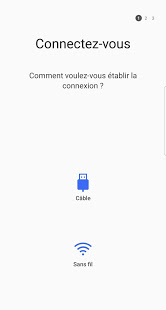
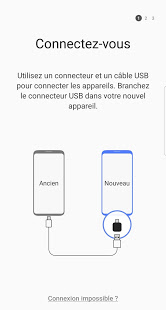
- Multiple Transfer Methods – You have the flexibility to choose how you move your data: wireless via Wi-Fi Direct, wired using a USB-OTG cable (which is faster and more stable for large data sets), or through a computer using the Smart Switch PC software (available for Windows and Mac). This ensures that no matter your technical comfort level or available cables, you can complete the transfer.
- Backup and Restore to PC or External Storage – Beyond direct device-to-device transfers, Smart Switch allows you to create backups of your current phone’s data onto your computer or an SD card. Later, you can restore that backup onto a new phone or even a different Samsung device. This is perfect for those who want a safety net before upgrading or need to free up space.
- Smart Switch Cloud Backup – For Samsung device owners, the app integrates with Samsung Cloud (if available on your model), enabling you to back up and restore data over the internet. This adds an extra layer of convenience, allowing you to recover your data even without a wired or local wireless connection.
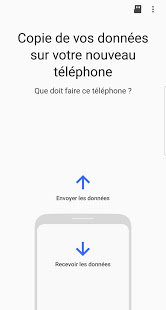
- User-Friendly Interface with Guided Steps – The app is designed to be intuitive for everyone. On the source device, you simply confirm the connection, select the data you want to transfer, and let Smart Switch do the rest. On the destination Samsung phone, the app automatically detects the incoming transfer and provides clear on-screen instructions, so even first-time users can complete the process without confusion.
- Fast and Secure Encryption – Whether transferring wirelessly or with a cable, all data is encrypted during transit to protect your privacy. The app uses Samsung’s proprietary technology to ensure that your personal information—from bank details saved in apps to private photos—remains safe from interception.
Why Choose Samsung Smart Switch Mobile?
When you are moving to a new phone, you have several options: manual copying, cloud services, or third-party transfer tools. But Samsung Smart Switch stands out because it is built by Samsung specifically for Samsung devices. This means it is optimized for the hardware and software of Galaxy phones, resulting in faster transfers, fewer compatibility issues, and deeper integration with system settings. For example, it can transfer Wi-Fi passwords, home screen layouts, and even call forwarding settings—things many third-party apps cannot touch. Moreover, it is completely free and does not require you to upload your data to third-party servers. You retain full control, and the transfer happens directly between your devices or your computer. For iPhone users, Smart Switch is one of the few apps that can move iMessage history, which is notoriously difficult to export. The app also handles app data for many popular apps like WhatsApp, LINE, and Viber, so you do not have to set them up from scratch. Finally, Samsung continuously updates the app to support new Galaxy models and Android versions, ensuring that it remains reliable and up-to-date.
How to Use Samsung Smart Switch Mobile
Using the app is straightforward. Start by downloading Samsung Smart Switch Mobile on both your old phone and your new Samsung Galaxy device. On the new device, the app may already be pre-installed. Then, choose your preferred connection method: If you have a USB-OTG cable (typically a small adapter that plugs into the new phone’s charging port), you can connect the two phones directly. This is the fastest method and requires no Wi-Fi. Alternatively, select “Wireless” on both phones—they must be connected to the same Wi-Fi network. For PC transfers, install the Smart Switch software on your computer and connect your old phone via USB, then back up to the computer. After that, connect the new Samsung phone to the computer and restore the backup. Once the connection is established, the app will scan your old device and list all the data categories. You can select or deselect specific items (e.g., skip old messages but keep photos). Tap “Transfer” and wait for the process to complete. The time depends on the amount of data; a few gigabytes might take 10–20 minutes with a wired connection. After the transfer, your new phone will restart with all your data in place. For a full step-by-step guide with screenshots, you can visit Samsung’s official support page.
Tips and Tricks for a Smooth Migration
To get the best results from Smart Switch, keep these practical tips in mind. First, ensure both devices have at least 20% battery before starting—or keep them plugged in. Large transfers can drain power quickly. Second, if you are using a wireless transfer, place both phones close together and avoid large metal objects or other Wi-Fi interference. Wired transfers are generally more stable for gigabyte-sized data. Third, before the transfer, update your old phone to the latest software version to avoid compatibility hiccups. Fourth, if you are coming from an iPhone, it is a good idea to turn off iMessage and FaceTime on the old phone at least 24 hours before transferring, so those services reroute to your new device. Fifth, for app data (like chat backups), Smart Switch can only transfer app data for supported apps—check Samsung’s list in the app settings. For unsupported apps, you may need to use the app’s own backup feature. Finally, after the transfer, do not be alarmed if some app permissions need to be re-granted. Also, you may need to sign back into a few accounts for security reasons. If you encounter any issues, the app includes a “Help” menu with troubleshooting steps, and Samsung’s customer support is available online and via phone.
Samsung Smart Switch Mobile is more than just a data mover; it is your personal migration assistant, designed to make the switch to a new Samsung Galaxy device as smooth and painless as possible. With support for a wide range of data, multiple transfer methods, backup capabilities, and a user-friendly interface, it gives you the confidence that nothing important will be left behind. Whether you are upgrading from a years-old phone or switching platforms, this tool saves you time and eliminates the frustration of manual transfers. Download Samsung Smart Switch Mobile from the Google Play Store and take the first step toward enjoying your new phone—with all your memories, connections, and preferences intact. Your next Samsung device is ready; let Smart Switch set it up exactly the way you like it.