| Title | Link to Windows |
| Version | 1.22093.10.0 |
| Price | Free |
| Category | Common |
| Package | com.microsoft.appmanager |
Link to Windows is the official Microsoft application that bridges your Android smartphone and your Windows PC, creating a unified, cross‑device experience. Developed by Microsoft Corporation, this productivity tool—formerly known as Your Phone Companion—enables you to instantly access your phone’s calls, messages, photos, apps, and notifications directly from your computer. Whether you’re working in the office, studying, or simply multitasking at home, Link to Windows eliminates the constant need to pick up your phone. By mirroring your phone’s core functions onto your PC, it keeps you focused on your screen while staying fully connected. With deep integration into Windows 10 and Windows 11, the app leverages your Microsoft account to sync data securely, making it an indispensable addition to any productivity‑focused workflow. Best of all, it is completely free and works with a wide range of Android devices, including those from Samsung, OnePlus, and many other manufacturers that support the Phone Link experience.
Key Features
- Calls and Messages on Your PC – Make and receive phone calls directly from your Windows PC using your computer’s microphone and speakers. Send, read, and reply to text messages (SMS) without touching your phone. All conversations are synchronised in real‑time, ensuring you never miss a call or an important message while you’re deep in work.
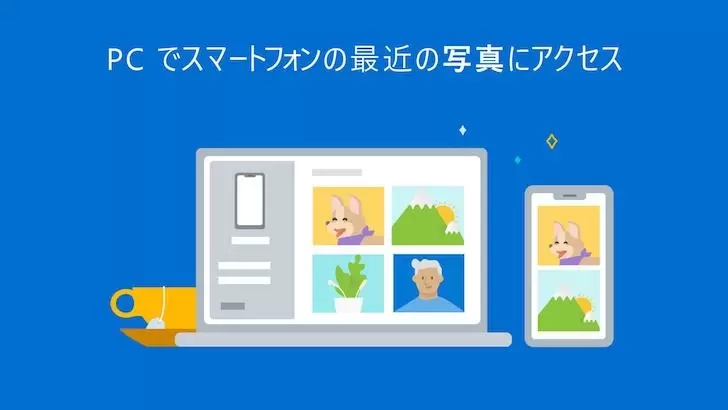
- Instant Photo and File Access – Access your phone’s entire photo library and latest screenshots directly on your PC. Drag and drop images into documents, emails, or social media posts without needing to email them to yourself or use a USB cable. The app automatically displays your most recent photos, and you can browse the full gallery seamlessly.
- App Mirroring and Screen Casting – Mirror your Android phone’s screen to your Windows desktop using the built‑in screen casting feature. Launch any app from your phone right on your PC – from social media and messaging apps to productivity tools and games. Interact with the mirrored screen using your mouse and keyboard, giving you full control over your mobile apps without lifting your phone.
- Notifications Management – See your phone’s notifications appear next to your PC’s action centre. You can dismiss them, respond, or take action directly from the notification without switching devices. This helps you avoid constant phone checking and reduces distractions, allowing you to focus on what matters.
- Cross‑Device Copy and Paste – Copy text, images, or links on one device and paste them on the other. With the unified clipboard feature, your clipboard history is shared between your phone and PC, making it effortless to move content between devices. This feature works wirelessly and requires no extra cables or services.
- Phone Call Continuity – When you receive a call, you can choose to answer it on your PC or your phone. The app logs your recent call history, and you can initiate calls from your PC using your phone’s dialer. It supports both Wi‑Fi and mobile networks, ensuring clear voice quality.
- Integration with Windows Features – Link to Windows works natively with Phone Link (formerly Your Phone) on Windows 10 and Windows 11. It syncs with Microsoft Launcher on supported devices, allows you to use Do Not Disturb modes, and even lets you manage your phone’s ring and volume from your PC. All of this is tied together by your Microsoft account, ensuring encrypted, secure connections.
Why Choose Link to Windows?
Link to Windows stands out because it is built by Microsoft to work seamlessly with the Windows operating system. Unlike third‑party alternatives, it doesn’t require complex setup or additional hardware; a simple pairing using your Microsoft account is enough. The app is constantly updated to support the latest Android versions and Windows updates, ensuring long‑term compatibility and performance improvements.
Security and privacy are at the core of the experience. All data transmitted between your phone and PC is encrypted, and Microsoft does not use your personal information for advertising or profiling. You have full control over which permissions you grant – such as access to contacts, messages, and notifications – and you can revoke them at any time. Moreover, the app is completely free, with no hidden subscriptions or in‑app purchases, making it accessible to everyone with a Windows PC and an Android smartphone.
For power users and professionals, the deep integration with Windows productivity features is a significant advantage. You can use the app alongside Microsoft Teams, Outlook, and Office applications to move files and messages across platforms without losing focus. The screen mirroring function is especially useful for presenting mobile apps during meetings or demonstrations, or for quickly accessing apps that aren’t available on Windows.
How to Get Started
Setting up Link to Windows is straightforward. First, install the app from the Google Play Store on your Android phone. Then, on your Windows PC, open the Phone Link app (pre‑installed on Windows 10 and 11; if not, it can be downloaded from the Microsoft Store). Sign in with the same Microsoft account on both devices. Your phone will receive a pairing code – enter it on your PC to complete the connection. Depending on your phone model, you may need to grant additional permissions for calls, notifications, and screen mirroring. Once linked, you can customise which features are active from the Phone Link settings. The entire process takes less than two minutes, and after that, your devices stay connected automatically when they are on the same Wi‑Fi network or via Bluetooth.
To get the most out of the app, explore the settings in Phone Link on your PC. You can choose which notifications to receive, set Do Not Disturb preferences, and manage your phone’s clipboard history. For screen mirroring, ensure both devices are on the same high‑speed Wi‑Fi network for the best performance. If you use a Samsung, OnePlus, or other supported device, you may also be able to enable advanced features such as app streaming and using your phone as a webcam. Regularly update both the app on your phone and the Phone Link app on your PC to benefit from the latest improvements and security patches.
Tips and Tricks for Maximum Productivity
Once connected, try these practical tips to streamline your workflow. Use the cross‑device clipboard to quickly transfer URLs, addresses, or code snippets between devices – simply copy on one device and paste on the other. If you’re working on a document on your PC and need to insert a photo you just took with your phone, open the Photos section in Phone Link, find the image, and drag it directly into your document – no email or cloud upload required.
For frequent callers, set up your PC’s microphone and speakers as the default for phone calls. This allows you to take calls hands‑free while typing or video conferencing. You can also mute your phone’s ringer from the PC and let notifications appear only in the action centre to avoid double alerts. If you use the Microsoft Launcher on your Android phone, Link to Windows can sync your recent activities, making it easier to pick up where you left off.
Screen mirroring is particularly useful for using mobile‑only apps on a larger display. For example, you can respond to WhatsApp messages using your keyboard, scroll through Instagram feeds with a mouse, or even play mobile games with precise mouse controls. To conserve battery on your phone, you can close the mirroring session when not in use – the connection remains active for calls and notifications. Lastly, enable the “Do Not Disturb” sync so that when you set your PC to focus mode, your phone automatically silences non‑priority notifications. This creates a harmonious, distraction‑free environment across both devices.
Link to Windows transforms your Android smartphone and Windows PC into a cohesive ecosystem. By centralising communication, file access, and app control on your computer, it saves you time, reduces screen switching, and helps you stay in the flow. Whether you are a busy professional, a student juggling multiple devices, or anyone who wants a more streamlined digital life, Link to Windows is an essential tool that brings the convenience of your phone directly to your PC – without any wires or complicated configurations. Download it today from the Google Play Store and unlock a smarter way to work and connect.