| Title | Design Space: DIY with Cricut |
| Version | 5.14.0 |
| Price | Free |
| Category | Common |
| Package | com.cricut.designspace |
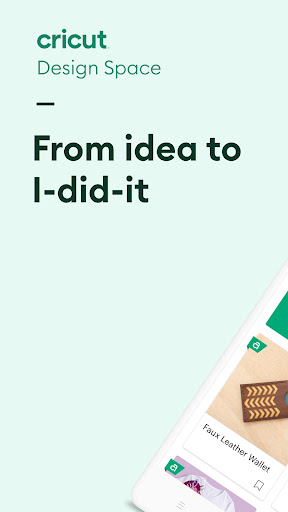
Design Space: DIY with Cricut is the official companion app for Cricut smart cutting machines, turning your Android device into a powerful creative studio. Whether you are a seasoned crafter or a complete beginner, this app unlocks a world of do-it-yourself projects that blend digital design with physical making. From custom t-shirts and personalized home décor to intricate paper crafts and vinyl decals, Design Space provides a seamless way to design, customize, and send projects to your Cricut machine. The app connects directly to Cricut Explore, Cricut Maker, and Cricut Joy machines via Bluetooth, offering a true mobile-first experience that lets you craft anywhere inspiration strikes. By eliminating the need for a desktop computer for many tasks, Design Space brings the entire Cricut ecosystem to your fingertips. You can browse thousands of ready-made projects, purchase or upload your own images and fonts, adjust sizes and materials, and control cuts, draws, or scores from your phone or tablet. The interface is intuitive yet powerful, built specifically for touch interaction, so you can drag, resize, and rotate elements with ease. With built-in tutorials, community projects, and a thriving library of designs, the app is not just a tool—it is a gateway to endless creative possibilities. Whether you want to make a birthday banner in five minutes or engineer a complex layered paper sculpture, Design Space helps you turn your vision into a tangible creation with precision and speed.
Key Features
- Design & Edit On the Go – Create custom projects directly on your Android device. Add text, shapes, images, and uploaded photos. Use the touch interface to resize, rotate, layer, and align elements with snap-to-grid precision. No desktop required.
- Vast Content Library – Access over 200,000 images, thousands of ready-to-make projects, and hundreds of fonts. Browse by category, theme, or material. Download free designs or purchase premium ones from the Cricut Design Space Marketplace.
- Seamless Bluetooth Connection – Wirelessly send your designs to Cricut Explore, Maker, or Joy machines. No cables, no transferring files. The app shows real-time machine status, material settings, and cut previews so you can start crafting immediately.
- Smart Material Settings – Choose from a wide range of materials including cardstock, vinyl, iron-on, leather, fabric, balsa wood, and more. The app automatically adjusts cut pressure, blade type, and speed for optimal results. Create custom material presets for specialty supplies.
- Upload Your Own Artwork – Import SVG, PNG, JPG, GIF, and DXF files from your device’s gallery or cloud storage. Use the built-in trace tool to convert photos into cuttable shapes. Remove backgrounds, add layers, and prep your designs for cutting.
- Project Tutorials & Inspiration – Learn new techniques with step-by-step guided projects. Watch videos, read tips, and see material lists. Save your favorite tutorials and share finished projects with the Cricut community directly from the app.
- Offline Mode – Download projects, images, and fonts to your device so you can design and cut even without an internet connection. Perfect for craft fairs, workshops, or traveling.
Why Choose Design Space Over Other Crafting Apps
Design Space stands out because it is built specifically for Cricut machines, meaning every feature from the interface to the cut algorithms is optimized for how these smart cutters actually work. Competing apps often treat mobile design as a second thought, but Cricut has invested heavily in making the touch experience as fluid as a desktop version. The app also integrates deeply with Cricut’s hardware ecosystem—when you change material type, the machine adjusts its cutting behavior instantly. Another major advantage is the depth of the community and design library. While other apps offer a handful of templates, Design Space provides professional-quality artwork from independent designers, licensed brands like Disney, Marvel, and Star Wars, and a social feed where you can see what other crafters are making. The app also supports multiple machines and multiple users; you can switch between your Cricut Maker and Cricut Joy without reconfiguring anything. For anyone serious about die-cutting, vinyl application, or fabric crafting, the official Cricut app is the only tool that delivers a truly seamless mobile-to-machine experience.
How to Use Design Space: A Quick Start Guide
Getting started is straightforward. First, download the app from the Google Play Store and create or sign into your Cricut ID. If you already own a Cricut machine, ensure it is powered on and within Bluetooth range. The app will guide you through pairing in seconds. Once connected, you can either select a ready-made project from the ‘Projects’ tab or tap ‘New Project’ to start from scratch. The canvas area fills your screen—tap the image library button to browse thousands of free and paid images, or tap the text tool to add custom text with your choice of font. To upload your own design, use the ‘Upload’ button and choose from your device folders. After you arrange your design, tap ‘Make It’. The app will ask you to confirm material type, mirror settings (for iron-on), and how many copies. Then hit ‘Confirm’ and your Cricut machine will start cutting. You can monitor progress on the app and even pause or cancel the job. For more complex projects, the app includes a ‘Layers’ panel that lets you hide, unlock, or change the operation (cut, draw, score, or foil) for each element. Experiment with attaching, welding, or slicing shapes to create custom designs beyond simple layouts.
Tips and Tricks for Getting the Most Out of the App
To maximize your crafting experience, keep a few things in mind. First, always check the ‘Materials’ settings before cutting. Even a small mismatch in pressure can result in tearing or incomplete cuts. Use the custom material option to fine-tune for unique substrates like holographic vinyl or thick felt. Second, take advantage of the ‘Preview’ function—it shows exactly where your design will land on the mat, so you can reposition it to avoid waste. Third, if you are working with iron-on (HTV), remember to mirror your design manually in the ‘Make It’ screen—the app does prompt you, but it is easy to forget. Fourth, explore the ‘Design Space Community’ tab; you can filter projects by material, machine, or difficulty, and save them directly to your account. Many users share free SVG files there. Fifth, use the ‘Download’ feature for large projects you plan to cut at a later time or in a location with spotty internet. The app also lets you create ‘Collections’—folders to organize your designs by holiday, recipient, or craft type. Finally, if you encounter issues, the app has a built-in ‘Help’ section with troubleshooting articles and a chat bot that can resolve many common Bluetooth or cut errors. Regular updates add new features like foil transfer support and collaborative project sharing, so keep your app updated.
Closing Thoughts
Design Space: DIY with Cricut has transformed the way millions of people approach crafting. By putting the full power of Cricut’s design ecosystem into your pocket, the app removes barriers between inspiration and creation. Whether you are making custom gifts for friends, decorating your home, or starting a small Etsy shop, this app equips you with professional-grade design tools without the learning curve of traditional software. The combination of a vast content library, intuitive mobile editing, and seamless machine integration makes it the indispensable partner for any Cricut owner. If you have ever wanted to turn your smartphone into a design studio that talks directly to a cutting machine, Design Space is the only app you need. Download it today and discover just how much you can create from the palm of your hand.